About a week ago, I learnt about MattKC's vanilla project to connect a computer, acting as a Gamepad, to a Wii U. I had read about libdrc earlier, but this is what ultimately motivated me to do the opposite: to connect my Gamepad to my computer.
A few days later, I finally have everything built and working (well, to some extent). It was rough. Nothing worked like it was supposed to. I hope I can share my experiences here so someone else can get it working with a little less hassle.
This blog is written partly as a half-baked tutorial and partly as my experiences. As you'll see, I don't have much experience writing anything, so I apologize for the inconsistent writing style.
This tutorial is also based largely on the libdrc docs and partly on this helpful blog post (for compiling the kernel driver). They're good references to read if you plan to do this yourself.
This blog also assumes a modern (as of 2026-01-10) Linux host. In my case, I'm running Arch Linux on the 6.18.3-arch1-1 kernel. Because a kernel patch is involved, I'd recommend not doing this on SteamOS, for example.
The Gamepad connects to the Wii U through 5GHz Wi-Fi with modified WPA2.
WiiUaabbccddeeff in normal mode and WiiUaabbccddeeffaabbccddeef_STA1 in pairing mode (where aa:bb:cc:dd:ee:ff is the DRH module's MAC address).WiiUaabbccddeeff with the paired PSK.The PSK and WPS calculations use modified ciphers that rotate the computed hashes 3 bytes to the left. They are fittingly referred to as "tendoNin" where patched.
I highly encourage you to check out MattKC's video and the libdrc documentation (maybe even their talk at 30C3!) for more information on how this all works ♥.
To have the Gamepad connect to my computer, I'll be going with the roundabout method of:
Now, it's theoretically possible to pair directly to the Gamepad, but I'm not sure there's a way to do that yet. For one, the normal WPS ciphers are still used everywhere in memahaxx's (this is false, it is possible!). I hope to revisit this later.drc-hostap/hostapd except for wpa_supplicant, and I've tried patching it together for the past few hours to no avail.
Not all wireless adapter will work! Your adapter needs to support reading TSF from the mac80211 kernel driver and hosting a 5GHz network.
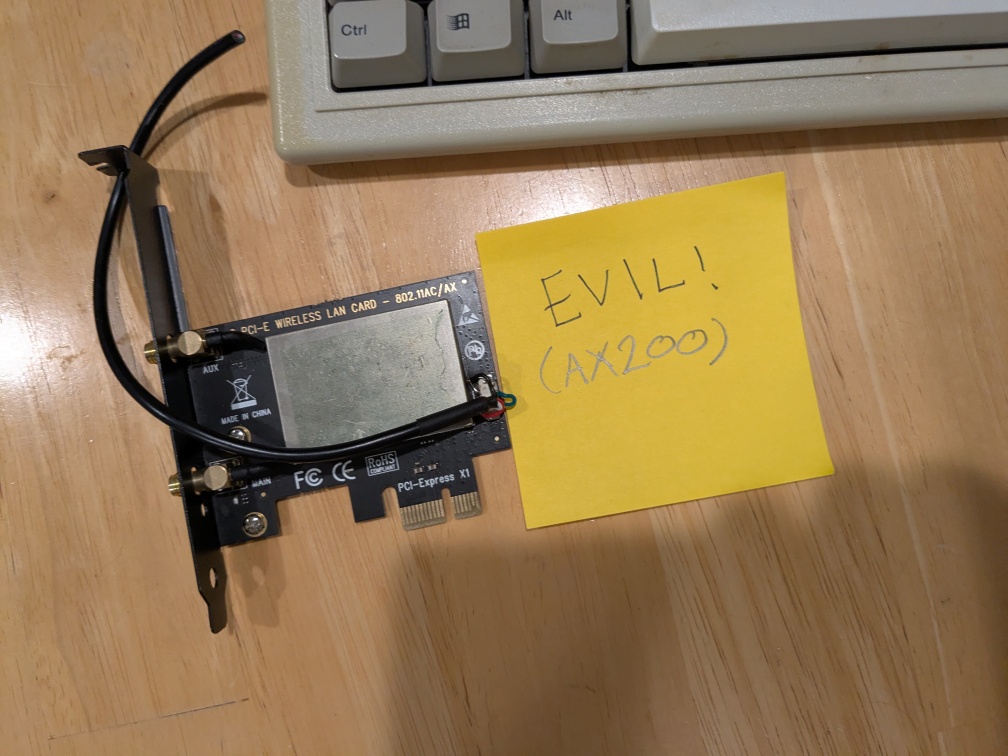
NOTE: Intel cards are not compatible with libdrc. They won't let you host a 5GHz access point due to their location aware regulatory feature (they might let you if you connect to a 5GHz network first), and the drivers iwldvm and iwlmvm do not expose TSF to mac80211.
TSF stands for "Time Synchronization Function." It's a somewhat obscure standard in Wi-Fi, and the Gamepad uses it to synchronize video packets (video data will not show on the Gamepad without it). Although it's implemented in basically every wireless card, some drivers don't expose it to the mac80211 kernel driver. There's not a good way to find if it's supported without just trying and seeing, unfortunately. I'll discuss this more in the kernel patching section.
A good point of reference to see if your card supports hosting a 5GHz access point is to check the outputs of the following commands. Note that you'll want to disable NetworkManager and wpa_supplicant before running iw commands.
lspci | grep 'Network'
27:00.0 Network controller: Realtek Semiconductor Co., Ltd. RTL8812AE 802.11ac PCIe Wireless Network Adapter (rev 01)
For reference, I use an ASUS PCE-AC51:
iw list | sed -n '/Supported interface modes/,/Band/p' | sed '$d'
Supported interface modes:
 * IBSS
 * managed
 * AP <------- we're looking for this one!
 * AP/VLAN
 * monitor
 * mesh point
 * P2P-client
 * P2P-GO
iw list | grep -A 14 'Frequencies'
Frequencies:
* 2412.0 MHz [1] (20.0 dBm)
* (...other 2.4GHz frequencies...)
* 2484.0 MHz [14] (disabled)
--
Frequencies:
* 5180.0 MHz [36] (30.0 dBm) <------- we're looking for this one!
* (...other 5GHz frequencies...)
* 5600.0 MHz [120] (30.0 dBm) (no IR, radar detection)
If you see anything next to frequency 36 (e.g. "disabled" or "no IR"), then chances are you can't host a 5GHz access point due to the regulatory code set. Check the output of:
sudo iw reg get
...if it's set as country 00 or country 99, try setting it to your country:
sudo iw reg set US
sudo iw reg get
global
country US: DFS-FCC
...
If you're unable to change the country code, or if doing so has no effect, then your adapter may not support hosting a 5GHz AP or let you (sigh...). Consult this archwiki page for more information.
For my own sanity, I found it's easiest to use a distrobox — a Docker container with a Linux distribution (that shares your home directory) — running Debian Bookworm. In any event, the rest of this blog will assume Debian commands.
Some steps you can follow to set one up are as follows:
distrobox create -i debian:13 drc
# and, to re-enter the distrobox:
distrobox enter drc
(and, some initial setup things to run in the distrobox)
# the debian container will prompt for a password if your shell is bash.
# if you set one, then here's a quick nuclear option to stop sudo prompting for a password:
chsh -s /bin/bash
sudo sed -i 's/ALL=(ALL:ALL) ALL/ALL=(ALL:ALL) NOPASSWD: ALL/g' /etc/sudoers.d/sudoers /etc/sudoers
Here's a list of dependencies I needed to install on Debian 13 to get this all to work:
sudo apt update && sudo apt install -y \
	git make gcc g++ pkg-config \
	yasm nasm \
	libswscale-dev libgl-dev libglu-dev libglew-dev libsdl-dev libsdl1.2-compat-dev \
	vim nano
For your own sanity, please create a working directory where you'll clone everything into:
mkdir ~/gamepad/ && cd ~/gamepad/
This blog will reference this path exactly. It's helpful to make a new directory called prefix for the C/C++ libraries you'll build, instead of installing everything to /usr/local/ and overriding system libraries.
mkdir -p ~/gamepad/prefix/{lib/pkgconfig,bin,include}
We're getting into the fun parts where we need to have full control over our wireless card. An easy way to find the device name of your wireless card is through this command:
ip --color=auto link
1: lo: <LOOPBACK,UP,LOWER_UP> mtu 65536 qdisc noqueue state UNKNOWN mode DEFAULT group default qlen 1000
    link/loopback 00:00:00:00:00:00 brd 00:00:00:00:00:00
2: enp37s0: <BROADCAST,MULTICAST,UP,LOWER_UP> mtu 1500 qdisc fq_codel state UP mode DEFAULT group default qlen 1000
    link/ether 30:9c:23:df:4f:bc brd ff:ff:ff:ff:ff:ff
    altname enx309c23df4fbc
4: docker0: <NO-CARRIER,BROADCAST,MULTICAST,UP> mtu 1500 qdisc noqueue state DOWN mode DEFAULT group default
    link/ether 2e:1a:88:cd:ea:6a brd ff:ff:ff:ff:ff:ff
5: wlp39s0: <NO-CARRIER,BROADCAST,MULTICAST,UP> mtu 1500 qdisc noqueue state DOWN mode DEFAULT group default qlen 1000
    link/ether 0c:9d:92:ac:3c:fe brd ff:ff:ff:ff:ff:ff
    altname wlx0c9d92ac3cfe
and looking for anything starting with wl. In my case, that's wlp39s0.
Note: the rest of this blog will refer to your wireless adapter as $IFACE. You can choose to set a shell variable for this, such as:
echo "export IFACE=wlp39s0" >> ~/.profile && source ~/.profile
System-wide NetworkManager and wpa_supplicant services will also (quietly) break everything, so sadly you will need to stop them from managing your network interface. If you use NetworkManager, you can just run:
# on the host
sudo nmcli device set $IFACE managed no
The Gamepad connection uses the 192.168.1.1/24 subnet. Unfortunately, this is probably the most common subnet. Vanilla works around this by setting the priority of its adapter to the lowest possible and binding itself to that adapter specifically. libdrc currently has no way to do this; if you're connected to a network with that subnet, you'll need to disconnect from it.
As mentioned, the Gamepad uses the obscure TSF (Time Synchronization Function) standard to synchronize packets. This is implemented on a lot of network adapters, but is not accessible in user-space. Thus, the folks at memahaxx created a patch to the mac80211 kernel module to expose it in /sys/class/net/$IFACE/tsf.
Unfortunately, even if it's implemented on your network card, it's not guaranteed that it'll be exposed to mac80211. The easiest way to know for sure is to just try it out.
This blog post, also on libdrc, helped me figure out how to do this.
I'm running Arch Linux, and the (latest) kernel I'm running is 6.18.3-arch1-1. I found a tarball of the kernel source on their Github:
# on the host
cd ~/gamepad/
wget 'https://github.com/archlinux/linux/archive/refs/tags/v6.18.3-arch1.tar.gz' # (~243MiB)
tar xvf v6.18.3-arch1.tar.gz && rm v6.18.3-arch1.tar.gz
cd linux-6.18.3-arch1/
The patch from a decade did not apply cleanly, so I had to patch it myself. I've uploaded a new diff (mirror) for a more modern version of Linux.
wget 'https://paste.sr.ht/blob/5450d19424777d7bd62e5c57696a55c963079a62' -O drc-mac80211.patch
patch -p1 < drc-mac80211.patch
and now, we can try to build this module. Following the blog, I first need to get the current kernel config:
sudo modprobe configs # this makes /proc/config.gz exist
zcat /proc/config.gz > .config
and run the oldconfig make target. Why old? I looked it up and it's to "update an existing .config file to match the current kernel source code." Still a confusing name, but I can kind of see the logic, I guess.
make oldconfig -j$(nproc)
Following one more command I don't understand:
make modules_prepare -j$(nproc)
and now I apparently need this file called Module.symvers. I just searched my filesystem and found it at /usr/lib/modules/6.18.3-arch1-1/build/Module.symvers, so I'll steal that one!
cp /usr/lib/modules/6.18.3-arch1-1/build/Module.symvers .
And to finally make the module:
make M=net/mac80211 -j$(nproc)
which leaves an artifact at ./net/mac80211/mac80211.ko.
Loading the kernel module is a bit annoying — I have to unload the mac80211 module by unloading all of its dependencies in the right order. For me, that was just trial-and-error of rmmod and going down the tree. In the end, I found the commands to work for me to be:
sudo rmmod rtl8821ae btcoexist rtl_pci rtlwifi mac80211
sudo insmod ~/gamepad/linux-6.18.3-arch1/net/mac80211/mac80211.ko
insmod: ERROR: could not insert module /home/sheepy/gamepad/linux-6.18.3-arch1/net/mac80211/mac80211.ko: Invalid module format
uh... huh. What's the output of uname -r again?
6.18.3-arch1-1
oh, that's not 6.18.3-arch1. Why isn't the latest release on the Github the latest in the repos, anyways? I'll just edit the Makefile:
-EXTRAVERSION = -arch1
+EXTRAVERSION = -arch1-1
make modules_prepare -j$(nproc)
make M=net/mac80211 -j$(nproc)
sudo insmod ~/gamepad/linux-6.18.3-arch1/net/mac80211/mac80211.ko
and I got lucky enough that that worked. Then to reload the modules in the opposite order:
sudo modprobe mac80211
sudo modprobe rtlwifi
sudo modprobe rtl_pci
sudo modprobe btcoexist
sudo modprobe rtl8821ae
Does it work?
ls /sys/class/net/*/tsf
/sys/class/net/wlp39s0/tsf
Well, that's promising! Looking in xxd, it's only returning one value, though?
00000000: eaea eaea eaea eaea ........
Oh, duh. If I connect to a network, then it changes.
$ xxd /sys/class/net/wlp39s0/tsf
00000000: 23ef 1f00 0000 0000                      #.......
$ xxd /sys/class/net/wlp39s0/tsf
00000000: 0eff 2600 0000 0000                      ..&.....
Looking through the mac80211 code for drv_get_tsf() (driver-ops.c), it will return -1ULL if the driver doesn't expose (struct ieee80211_ops).get_tsf. Some drivers won't expose TSF to mac80211. My Intel AX200 wireless card shows this:
00000000: ffff ffff ffff ffff ........
which is equal to -1ULL. If this is the case for you, you can try to patch your network driver if it exposes TSF internally. For inspiration, ActuallyRuben made a patch for the Realtek rtw89 driver (mirror). I made a patch for the Mediatek m76x2u driver (mirror).
To make these changes persistent, you can copy the patched module to the /lib/modules/<version>/updates/:
sudo cp net/mac80211/mac80211.ko /lib/modules/$(uname -r)/updates/
sudo depmod -a
(of course, on a kernel update this will be undone.)
wpa_supplicant and hostapdwpa_supplicant and hostapd are very powerful utilities for connecting to networks and setting up access points. Both of these come from the hostap repository (without a d). wpa_supplicant is used to connect to the Wii U and get its PSK, and hostapd to host our access point for the Gamepad to connect to.
Note: if you don't want to skip a bit of hassle, then feel free to do the following:
~/.local/share/Vanilla/config.xmlwpa_supplicant (including compiling).Continuing...
Since the Gamepad uses modified ciphers, we'll need to modify this repo to include support for them (referred to as tendoNin). These changes are part of memahaxx's existing fork, but it was forked from over a decade ago and doesn't support libssl3 or libnl-3 — we'll need to build old versions of those to use this repo! Vanilla gets away with this by using another, slightly newer, fork (9 years ago instead of 13 :P) that updates wpa_supplicant to build with modern libraries, but not hostapd.
I really tried to get a modern version of hostapd to work, but I always got nl80211: Beacon set failed: -22 (Invalid argument), because
NLA_PUT_U32(msg, NL80211_ATTR_KEY_CIPHER, wpa_alg_to_cipher_suite(alg, key_len));
returns -EINVAL with the modified ciphers? is this a libnl-3 problem? well, it's been a few hours, so here are some steps for getting the original fork to build in the meantime.
Clone the fork:
cd ~/gamepad/
git clone 'https://bitbucket.org/memahaxx/drc-hostap/'
And now there's a minor detour ahead to get a few other dependencies!
libnl-1.1.4cd ~/gamepad/ wget 'https://www.infradead.org/~tgr/libnl/files/libnl-1.1.4.tar.gz' tar xf libnl-1.1.4.tar.gz && rm libnl-1.1.4.tar.gz cd libnl-1.1.4/ ./configure --prefix=$(realpath ../prefix) make clean make -j$(nproc) && printf '\nsuccess!!\n' make install
libssl-1.0.2ucd ~/gamepad/ wget 'https://www.openssl.org/source/openssl-1.0.2u.tar.gz' tar xf openssl-1.0.2u.tar.gz && rm openssl-1.0.2u.tar.gz cd openssl-1.0.2u/ ./Configure --prefix=$(realpath ../prefix) --openssldir=etc/ssl --libdir=lib shared no-ssl3-method linux-x86_64 # change to your architecture <3 make clean make depend -j$(nproc) make -j$(nproc) && printf '\nsuccess!!\n' make install_sw
It's quite useful to use a prefix in this case since we can link libssl.so to our 1.0.x version without breaking any other system packages that expect a 3.x version in place of it. In a Distrobox, of course, this is not much of a concern.
hostap suiteSince we used a prefix to build Netlink and OpenSSL, we'll need to add a couple extra lines to our .configs:
# build wpa_supplicant
cd ~/gamepad/drc-hostap/wpa_supplicant/
cp ../conf/wpa_supplicant.config .config
echo 'CFLAGS += "-I../../prefix/include"' >> .config
echo 'LIBS += "-L../../prefix/lib"' >> .config
make clean
make -j$(nproc) wpa_cli wpa_supplicant && printf '\nsuccess!!\n'
# build hostapd
cd ~/gamepad/drc-hostap/hostapd/
cp ../conf/hostapd.config .config
echo 'CFLAGS += "-I../../prefix/include"' >> .config
echo 'LIBS += "-L../../prefix/lib"' >> .config
make clean
make -j$(nproc) hostapd && printf '\nsuccess!!\n'
...hopefully that worked for you, too.
Now, to update the configuration files to have the name of your wlan card,
cd ~/gamepad/drc-hostap/
sed -i "/ctrl/b;0,/interface=.*/s//interface=$IFACE/" conf/*.conf
which results in
-interface=wlan0
+interface=wlp39s0
across a couple configuration files for me.
wpa_supplicant to connect to the Wii UNote: If your Gamepad is already paired to your Wii U, put it far away (or take out its battery) so it doesn't get unpaired! If the Gamepad stays off, you won't need to repair it to your Wii U.
Note: you can use Vanilla for this step
The libdrc docs are pretty good for describing how to do this! I'll consult them and go step-by-step on my own Wii U. I have to do something silly to handle the prefix I made so wpa_supplicant can find the shared objects.
# in one terminal...
cd ~/gamepad/drc-hostap/wpa_supplicant/
cp ../conf/get_psk.conf.orig get_psk.conf
alias sudo="sudo LD_LIBRARY_PATH=$(realpath ~/gamepad/prefix/lib)"
sudo ./wpa_supplicant -Dnl80211 -i $IFACE -c get_psk.conf
# in another terminal...
cd ~/gamepad/drc-hostap/wpa_supplicant/
alias sudo="sudo LD_LIBRARY_PATH=$(realpath ~/gamepad/prefix/lib)"
sudo ./wpa_cli -p /var/run/wpa_supplicant_drc
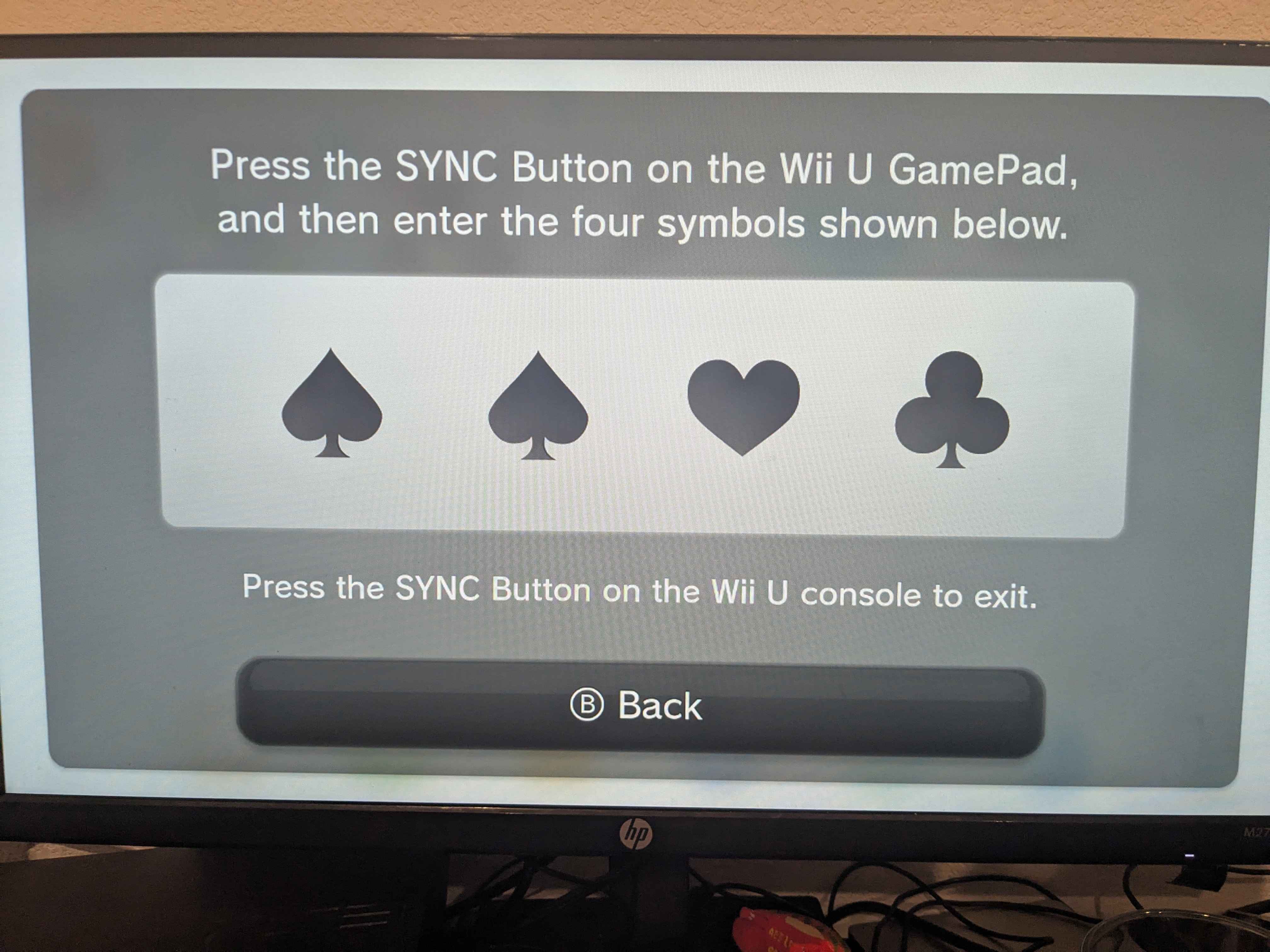
Entering pairing mode on my Wii U, the PIN in my case being ♠♠♥♣:
(♠ = 0, ♥ = 1, ♦ = 2, ♣ = 3) + 5678
so, the WPS PIN for me is 00135678
> scan
OK
<3>CTRL-EVENT-SCAN-STARTED
<3>CTRL-EVENT-SCAN-RESULTS
> scan_results
bssid / frequency / signal level / flags / ssid
...
9c:e6:35:3c:e1:07	5825	-18	[ESS]	WiiU9ce6353ce109ce6353ce107_STA1
> wps_pin 9c:e6:35:3c:e1:07 00135678   <-- note that BSSID is (basically) the MAC address, not the SSID
00135678
<3>CTRL-EVENT-NETWORK-ADDED 0
<3>WPS-PIN-ACTIVE
<3>CTRL-EVENT-SCAN-STARTED
<3>CTRL-EVENT-SCAN-RESULTS
<3>SME: Trying to authenticate with 9c:e6:35:3c:e1:07 (SSID='WiiU9ce6353ce109ce6353ce107_STA1' freq=5825 MHz)
<3>Trying to associate with 9c:e6:35:3c:e1:07 (SSID='WiiU9ce6353ce109ce6353ce107_STA1' freq=5825 MHz)
<3>Associated with 9c:e6:35:3c:e1:07
<3>CTRL-EVENT-SUBNET-STATUS-UPDATE status=0
<3>CTRL-EVENT-EAP-STARTED EAP authentication started
<3>CTRL-EVENT-EAP-STATUS status='started' parameter=''
<3>CTRL-EVENT-EAP-PROPOSED-METHOD vendor=14122 method=1
<3>CTRL-EVENT-EAP-STATUS status='accept proposed method' parameter='WSC'
<3>CTRL-EVENT-EAP-METHOD EAP vendor 14122 method 1 (WSC) selected
<3>WPS-CRED-RECEIVED
<3>WPS-SUCCESS
^C
And, just like it said,
cat get_psk.conf
(...)
network={
	ssid="WiiU9ce6353ce107"
	psk=aba3f7c7ece7e5ee9b91c73ad45b90f67acb43be011c6264c1e37b262634e55a
	(...)
}
hostapd to connect to the GamepadTo get the Gamepad to connect to us instead of the Wii U, we simply need to become the Wii U. This involves:
Pairing the Gamepad to the Wii U
Unplugging the Wii U (so that turning on the Gamepad doesn't turn on the Wii U)
Configuring hostapd to have the same SSID as the Wii U and the same PSK
If you haven't done the first two, go ahead and do them!
To configure hostapd, modify ~/drc-hostap/conf/wiiu_ap_normal.conf and change the following values:
-ssid=WiiUaabbccddeeff
+ssid=WiiU9ce6353ce107
-wpa_psk=00112233445566778899aabbccddeeff00112233445566778899aabbccddeeff
+wpa_psk=aba3f7c7ece7e5ee9b91c73ad45b90f67acb43be011c6264c1e37b262634e55a
...to whatever you got from get_psk.conf. Note that the normal mode SSID is just WiiU<bssid>, and doesn't include STA1 (reference).
Now, let's run hostapd! Again, we have to do something silly to handle our prefix.
cd ~/gamepad/drc-hostap/hostapd/
alias sudo="sudo LD_LIBRARY_PATH=$(realpath ~/gamepad/prefix/lib)"
sudo ./hostapd ../conf/wiiu_ap_normal.conf -d
My logs look promising:
wlp39s0: interface state UNINITIALIZED->ENABLED
wlp39s0: AP-ENABLED
wlp39s0: Setup of interface done.
and hostapd is waiting.
When I turn on the Gamepad, I see (full log for reference):
wlp39s0: AP-STA-CONNECTED 9c:e6:35:5f:44:51
...which is awesome! The Gamepad connected to our access point, and we know its MAC address! Take a note of this.
The Gamepad will say it cannot connect to the Wii U and turn off. This is expected at this point — we still need to set up DHCP and actually run a server.
Feel free to leave this running in the background for a while.
The Wii U hosts itself at 192.168.86.10, and gives a DHCP lease at 192.168.86.11 to the Gamepad. It also sets the MTU of the access point at 1800 bytes. Let's mimic that by running a few commands on the host:
sudo ip a a 192.168.1.10/24 dev $IFACE
sudo ip l set mtu 1800 dev $IFACE
And now for DHCP, we can use a stupidly simple server called netboot:
cd ~/gamepad/
wget 'http://brokestream.com/netboot.c'
gcc netboot.c -o netboot
and we can have the Gamepad on 192.168.86.11 as follows, with the MAC address we got earlier (separated by dashes):
# replace with your Gamepad's MAC address!
sudo ./netboot 192.168.1.255 192.168.1.10 192.168.1.11 9c-e6-35-5f-44-51
If you turn the Gamepad on now, you should see something like:
request 1 from 9c-e6-35-5f-44-51 ()
matched
...which means it's getting a DHCP lease, awesome!
We have the Gamepad connecting to our computer. All we need now is to get libdrc to write software for it!
x264Following the libdrc documentation, we'll need to build a custom version of x264, as the video stream is vertically chunked into 6 segments (each 854x80). Their version from 2013 is a massive pain to get working, and it's much easier to just apply the patches from drc-x264 to a modern version of x264.
It's also a good idea to patch this in a prefix, lest you accidentally break your system-wide x264 libraries and no longer are able to take screenshots (heh..).
x264 on amd64 depends on nasm or yasm depending on the version.
cd ~/gamepad/
git clone 'https://code.videolan.org/videolan/x264.git' && cd x264/
git checkout stable
git switch -c drc
I couldn't easily get these two repos to merge cleanly, but the patches we need are near identical to git diff 3bb4aa7~1 drc-x264/master. An updated patch is available here (mirror).
wget 'https://paste.sr.ht/blob/3fad9c18face024b56a3e6d9c23483b572309e7f' -O drc-x264.patch
patch -p1 < drc-x264.patch
git add .
git commit -m "drc patches"
and, to finish building:
# using a shared library means you need to prefix any libdrc software with the same LD_LIBRARY_PATH=...,
# but I also got "hidden symbol ... referenced by DSO" without it.
./configure --prefix=$(realpath ~/gamepad/prefix) --enable-shared
make -j$(nproc)
make install-lib-dev install-lib-shared
libdrc and demos!libdrc and its demos rely on the following: libswscale-dev libgl-dev libglu-dev libglew-dev libsdl-dev libsdl1.2-compat-dev (wow, SDL1.2!).
cd ~/gamepad/
git clone 'https://bitbucket.org/memahaxx/libdrc' && cd libdrc/
Like usual, time has rotted this project away a little, and I had to make some changes to get it to compile. The diff is super tiny at least! Here is the patch (mirror).
wget 'https://paste.sr.ht/blob/1d80e5213ae18c88e56953e252ed33e381112061' -O libdrc.patch
patch -p1 < libdrc.patch
git add .
git commit -m "update to modern C++"
I found out that SDL1.2 is packaged under a SDL/ sub-folder in the Arch AUR install, and I had to just prefix every #include <SDL.h> as #include <SDL/SDL.h>.
Then, building it and the demos,
./configure --prefix=$(realpath ~/gamepad/prefix)
make clean
make -j$(nproc)
make install
Running ./configure creates a Makefile.config that may be slightly wrong — if you get build errors, make sure there are spaces between the flags, e.g.
-LDFLAGS:=-lswscale-L/home/sheepy/gamepad/prefix/lib -lx264 -lpthread -lm -ldl
+LDFLAGS:=-lswscale -L/home/sheepy/gamepad/prefix/lib -lx264 -lpthread -lm -ldl
-LDFLAGS_DEMOS:=-lGL-lGLU -lOpenGL-lGLEW -lEGL -lGL -lGLU -lOpenGL-lSDL
+LDFLAGS_DEMOS:=-lGL -lGLU -lOpenGL -lGLEW -lEGL -lGL -lGLU -lOpenGL -lSDL
...why there are multiple copies of OpenGL libraries, I have no idea. Anyways, if it's built, then running
LD_LIBRARY_PATH=$(realpath ~/gamepad/prefix/lib) ./demos/3dtest/3dtest
should start a window with a cube (or, a square at first since it's head-on to the camera).
If it says "failed to start streamer," you probably don't have your network adapter on 192.168.86.10.
Turning on the Gamepad, and hoping,
tsdraw demo:
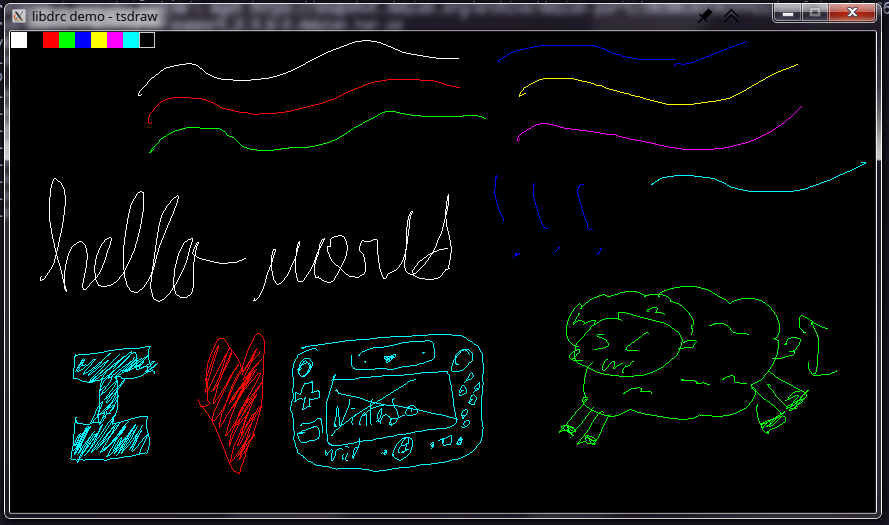
...it kind of works? It's worse than I expected. There are bad H.264 artifacts, it runs at a low framerate, and it loses sync quite often, especially when there's a lot of changes in the video.
I have an update to this! ActuallyRuben made some patches to libdrc (mirror) that helps with the artifacts and desync.
This is just a scratchpad of commands to run for when I want to connect my Gamepad to my computer. You'll recognize all of these commands from before.
On the host:
export IFACE=wlp39s0

sudo systemctl stop NetworkManager
sudo systemctl stop wpa_supplicant

sudo rmmod rtl8821ae btcoexist rtl_pci rtlwifi mac80211
sudo insmod ~/gamepad/linux-*/net/mac80211/mac80211.ko
sudo modprobe mac80211
sudo modprobe rtlwifi
sudo modprobe rtl_pci
sudo modprobe btcoexist
sudo modprobe rtl8821ae

sudo ip a a 192.168.1.10/24 dev $IFACE
sudo ip l set mtu 1800 dev $IFACE
And then, concurrently, in the Distrobox:
cd ~/gamepad/
# replace with your Gamepad's MAC address!
sudo ./netboot 192.168.1.255 192.168.1.10 192.168.1.11 9c-e6-35-5f-44-51
cd ~/gamepad/drc-hostap/hostapd/
alias sudo="sudo LD_LIBRARY_PATH=$(realpath ~/gamepad/prefix/lib)"
sudo ./hostapd ../conf/wiiu_ap_normal.conf -d
cd ~/gamepad/libdrc/
LD_LIBRARY_PATH=$(realpath ~/gamepad/prefix/lib) ./demos/3dtest/3dtest
There's a VNC client for libdrc I tried out, and it wasn't great -- libvncclient was super slow for sending updates and it ran at maybe 20fps. There's also no existing Wayland VNC server software (w0vncserver, Krfb, wayvnc) that supports setting a custom resolution or respects a client command to. I got around this by running a Wayland compositor (river-wm 0.3.4) at that resolution within my KDE session.
To address this, I made another program that uses the xcap crate for screen casting / sharing, drc-capture. You can use Steam's input remapping with the following mapping:
06008e3857696920552047616d655000,Wii U GamePad (libdrc),crc:388e,platform:Linux,a:b15,b:b14,x:b13,y:b12,dpleft:b8,dpright:b10,dpup:b9,dpup:b8,leftx:a0,lefty:a1~,leftstick:b23,rightx:a2,righty:a3~,rightstick:b22,leftshoulder:b5,lefttrigger:b7,rightshoulder:b4,righttrigger:b6,back:b2,start:b3,guide:b1,misc1:b21,steam:2,
There's another W.I.P. library that mirrors libdrc's functionality in Rust (as a rewrite rather than linking to) called strawberry (we really have lost the plot on all the coffee themed names, huh?). I modified my capture program to use it.
Right now, connecting your Gamepad to your computer is a bit of a difficult task. With the advent of Famidawg's development of Chocolate and Moonlight running at 60fps at Gamepad resolution for most applications I've put it through, libdrc is more of a novelty than anything else.
On that note, I want to thank and draw your attention to Famidawg's work on Chocolate. The community has been super helpful and I'm super excited for a much easier and better solution to come out.